
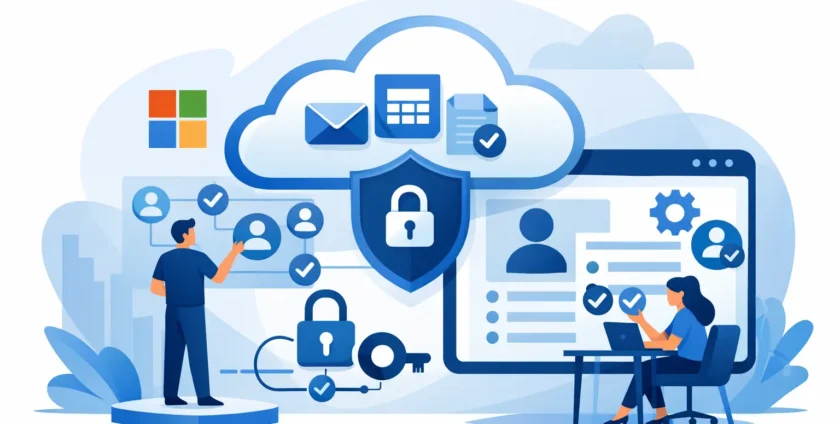
A former employee can still see finance folders, a contractor can access more than the job requires, or one shared mailbox password can be known by half the office. These are common problems when businesses configure Microsoft 365 permissions as staff requests arise, rather than as part of a clear access plan. The result is unnecessary risk, difficult troubleshooting and too much time spent asking who can access what.
For a small business or busy medical practice, permissions need to support the way people work while protecting sensitive information. The aim is not to lock everything down so tightly that staff cannot do their jobs. It is to give each person the right access for their role, remove it when circumstances change, and keep a reliable record of who has administrative control.
How to configure Microsoft 365 permissions safely
Start by identifying the information and services your organisation relies on every day. This usually includes email, shared mailboxes, Teams, SharePoint sites, OneDrive files, calendars and business applications connected to Microsoft 365. A medical practice may also have appointment, billing or document workflows that depend on particular mailboxes and shared files.
Then map access to job roles rather than individual preferences. For example, reception staff may need access to a shared appointments mailbox and selected practice documents, while payroll staff need restricted access to finance information. Managers may need visibility across a team without needing full Microsoft 365 administration rights.
This approach makes changes much easier. When a new staff member starts, you apply the access expected for their role. When someone moves departments or leaves, you can adjust or remove access without having to search through every folder, team and mailbox manually.
Separate user access from administrator access
Microsoft 365 has several administrator roles, and they should not be handed out broadly. A Global Administrator can make high-impact changes across the tenant, including managing users, security settings and subscriptions. Most staff, and many managers, do not need this level of control.
Use the least-privilege approach: assign the lowest permission level that allows someone to complete a legitimate task. A person who needs to reset passwords may only require a helpdesk-related role. Someone managing Exchange settings may need an Exchange role rather than full global access. This limits the damage that can occur if an account is compromised or a setting is changed by mistake.
Keep the number of Global Administrators low, but avoid relying on only one person. Businesses should have at least two appropriately secured administrator accounts, held by trusted people or supported by their managed IT provider. These accounts should not be used for everyday email and document work.
Use groups to manage everyday access
Assigning permissions one person at a time seems manageable when there are five staff. It becomes unreliable as the business grows, teams change and temporary workers come and go. Security groups and Microsoft 365 groups are a more practical way to manage access consistently.
Create groups that reflect real business functions, such as Finance, Reception, Operations, Practice Managers or Project Team A. Grant the group access to the relevant SharePoint site, shared mailbox, Team or application. Add and remove people from the group as their responsibilities change.
Before creating too many groups, agree on a simple naming convention. Clear names help administrators understand what a group controls and reduce the chance of assigning access to the wrong place. A name such as “SG-Finance-Invoices-Edit” is more useful than “Finance 2”.
For shared mailboxes, be specific about the type of access required. “Read and manage” access allows users to open and process messages. “Send as” lets a person send email as the shared address, while “send on behalf” shows that the message was sent by an individual for that mailbox. These permissions serve different purposes and should not be treated as interchangeable.
Set permissions where the work happens
Microsoft 365 permissions are spread across several services. Giving someone access to Teams does not automatically mean they should access every file in SharePoint, and sharing a document from OneDrive does not make a person a member of a project team.
In Microsoft Teams, decide who can create teams and channels, who can add guests, and whether external users are appropriate for the work involved. Guest access can be useful when collaborating with an accountant, supplier or external project partner. It also needs boundaries. Review guest access regularly, use expiry dates where available, and avoid sharing confidential information in a team simply because external access is enabled.
SharePoint is where permission sprawl often develops. Use site-level access for teams that work on the same material, rather than giving unique permissions to dozens of individual folders and files. A small number of well-managed sites is easier to audit and support. If a document is highly sensitive, store it in a dedicated restricted location rather than trying to secure it inside a broadly accessible site.
OneDrive is intended for an individual’s working files, not as the long-term home for key business records. If several people need ongoing access to operational documents, move them into the appropriate SharePoint site or Teams channel. This prevents files being stranded when a staff member leaves.
Protect sensitive information beyond folder access
Permissions are only one layer of protection. A user with valid access can still make an error, send a file to the wrong recipient or have their account taken over through a phishing attack. Multi-factor authentication should be enabled for all users, with stronger attention given to administrator accounts.
Conditional access policies can add useful controls, depending on your Microsoft 365 licensing and business needs. These policies can require multi-factor authentication, block older sign-in methods, or limit access from unmanaged devices. For organisations handling patient, financial or client information, this can reduce exposure when staff use mobiles or work remotely.
It depends on the organisation how restrictive these controls should be. A business with only managed company devices may choose tighter rules. A field-based team using personal mobiles may need a more flexible approach supported by mobile device management, app protection policies and clear expectations about data handling.
Do not overlook external sharing settings. Set a business-wide position on whether users can share files externally, who can approve exceptions, and whether links should require sign-in. Anonymous links are convenient, but they are difficult to control once forwarded. For confidential information, authenticated sharing with an expiry date is usually the safer choice.
Build permission reviews into staff changes
The most reliable permission process is connected to onboarding, role changes and offboarding. When a new employee starts, their manager should approve the role-based access they need. When someone changes jobs, their old access should be reviewed as carefully as their new access is granted.
Offboarding should happen promptly, ideally on the employee’s final day or earlier where risk requires it. Disable sign-in, revoke active sessions, remove group memberships, delegate or convert the mailbox if needed, and secure company data on managed devices. Simply changing an email password is not a complete offboarding process.
A regular access review catches the gaps that routine processes miss. At least quarterly, review administrator roles, external guests, shared mailbox permissions and access to finance, HR, patient or client records. Ask the responsible manager whether each person still needs access. If there is no clear business reason, remove it.
Keep a basic record of these decisions. It does not need to be complicated, but it should show who approved access, what was granted, and when it was reviewed. This is valuable when investigating an incident, preparing for an audit or answering a manager’s question quickly.
Common permission mistakes to avoid
The recurring issues are usually practical rather than technical. Businesses often give everyone broad access “just in case”, allow too many Global Administrators, keep former staff in groups, or use one shared login for a mailbox or application. Shared logins make accountability almost impossible and can interfere with multi-factor authentication.
Another mistake is allowing users to create Teams, SharePoint sites and sharing links without any ownership rules. Self-service collaboration can be useful, particularly for fast-moving teams. It needs nominated owners, sensible naming and a process for archiving inactive workspaces.
If your internal team does not have the time to maintain these settings, a local managed IT partner can provide ongoing oversight. Onsite Technology Solutions helps Melbourne businesses and healthcare providers manage Microsoft 365 access as part of a wider approach to security, support and continuity.
The best permission setup is one your team can maintain. Keep roles clear, use groups wherever possible, review access when people change, and make sure someone is accountable for the exceptions. That gives staff the access they need without leaving yesterday’s permissions as tomorrow’s security problem.
- By:
- Category: Uncategorized
- 0 comment