
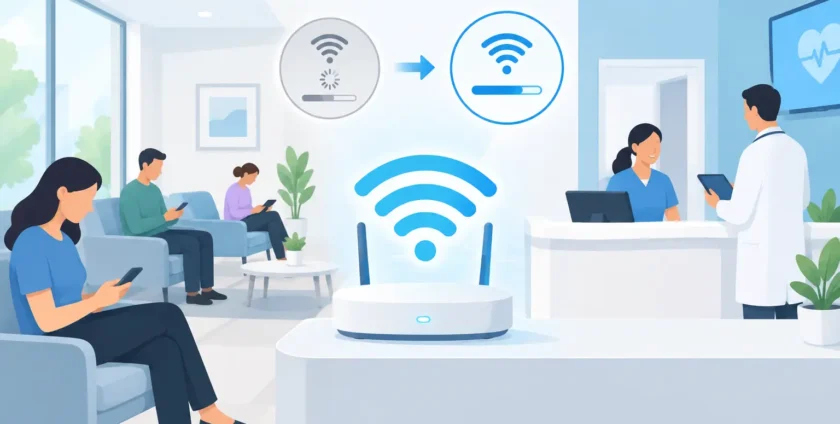
A clinic Wi-Fi upgrade example is most useful when it starts with the problems staff and patients actually experience: reception losing access to booking software, clinicians waiting for cloud records to load, and mobile devices dropping out between consulting rooms. These issues are not minor inconveniences in a busy practice. They create delays, frustrate staff and can affect the quality of a patient’s visit.
This practical example shows how a Melbourne suburban medical clinic could move from unreliable, patchy wireless coverage to a managed Wi-Fi environment designed around its daily operations. The goal is not to install more equipment for the sake of it. The goal is to give the practice dependable connectivity, clearer security controls and a support plan when something needs attention.
The clinic Wi-Fi upgrade example: the starting point
The clinic has six consulting rooms, a treatment room, reception, a small administration office and a waiting area. Around 20 staff work across the site during the week, with doctors, nurses, allied health providers and administrative staff using a mix of desktop computers, laptops, tablets and mobiles.
Its existing wireless network grew over time. A consumer-grade router was installed near reception, followed by two basic Wi-Fi extenders when staff reported poor signal in the back rooms. The setup worked well enough when only a few people were online. It struggled once cloud-based practice management, online forms, video consultations and staff mobiles became part of normal operations.
The practice manager reported several recurring problems. Wi-Fi was weak in two consulting rooms and the treatment room. Staff sometimes connected to the wrong extender and remained on a poor signal even when closer to another device. Video calls froze, printing from mobile devices was inconsistent, and the reception team had no simple way to tell whether an issue was caused by Wi-Fi, the internet service or a particular computer.
There was also one shared wireless password for staff, visitors and personal devices. That created an avoidable security concern. When a staff member left, changing the password meant reconnecting every approved device across the clinic.
Start with a site assessment, not a shopping list
A successful upgrade begins with understanding how the premises are used. Wi-Fi plans based only on floor size often disappoint because walls, cabinetry, medical equipment, waiting-room traffic and device numbers all affect coverage.
For this clinic, the assessment considers where staff need reliable access, where patient devices gather, and which systems cannot tolerate regular dropouts. It also checks the internet connection, the network cabinet, cabling condition, switch capacity and power availability. A strong wireless design cannot compensate for an overloaded internet service or ageing network hardware underneath it.
Testing identifies that the reception access point is carrying most of the clinic’s traffic. The extenders are reducing speed and creating inconsistent handovers as staff move between rooms. Thick internal walls are weakening coverage to the treatment room, while the waiting area becomes congested during peak appointment periods.
The assessment also separates what the clinic needs from what it may simply want. For example, guest Wi-Fi in the waiting room can improve the patient experience, but it must not compete with clinical traffic. Wi-Fi calling may help mobile coverage inside the building, but it should be tested with the clinic’s preferred mobile provider before being relied upon.
A practical design for staff, patients and clinical systems
The recommended solution replaces the router-and-extender arrangement with centrally managed business-grade wireless access points. Rather than placing them wherever a power point happens to be available, the access points are positioned to serve the reception and waiting area, the consulting-room corridor, and the rear treatment and administration spaces.
Each access point is connected back to the network switch by cable. This matters because wired connections give each device a dependable path back to the network. Wireless extenders can have a place in a small, low-demand office, but they are rarely the right long-term answer for a clinic relying on cloud applications and mobile clinical workflows.
The network is then divided into separate wireless services. Staff devices use a protected staff network. Practice-owned tablets, printers and approved medical devices sit on the appropriate managed network segment. Patients use a guest service that is isolated from business and clinical systems.
This separation reduces risk and makes troubleshooting easier. If guest Wi-Fi is slow during a busy morning, staff can still access the applications needed to check in patients and run appointments. If a device needs investigation, it can be identified without exposing the rest of the network.
A sensible clinic setup may include:
- a staff Wi-Fi service for authorised users and managed work devices;
- a guest Wi-Fi service with no access to internal systems;
- a dedicated segment for supported printers, tablets or compatible clinical equipment; and
- network rules that limit unnecessary traffic between these areas.
The exact design depends on the practice’s software, devices and risk requirements. Some medical equipment should remain on a wired connection where the vendor requires it or where reliability is critical. Wi-Fi is valuable, but it should not be treated as the answer to every connection type.
Security needs to be part of the upgrade
A faster signal is only one part of a clinic Wi-Fi upgrade. Healthcare providers handle sensitive information, so access controls and ongoing management matter just as much as coverage.
In this example, the shared password is replaced with individual staff access or controlled credentials. This makes it easier to remove access when someone leaves and avoids handing one permanent password to every contractor, casual employee and visitor. Multi-factor authentication for key systems, managed antivirus protection and regular software updates add further protection around the clinic’s wider IT environment.
The wireless equipment is also kept under central management. Firmware updates, configuration changes and alerts can be handled without waiting for equipment to fail in the middle of a clinic day. That does not mean every issue can be solved remotely. A local IT partner should be ready to attend on site when cabling, hardware replacement or hands-on testing is required.
The clinic should also document who owns the internet account, network hardware, administrator credentials and key vendor contacts. This is simple housekeeping, but it prevents delays when an urgent fault occurs or the practice changes staff.
What changes after the installation
Once the new network is installed, the team tests coverage in every working area rather than assuming the job is finished when devices appear online. Staff walk between consulting rooms with approved devices, test clinical and booking applications, print where required, and check guest access from the waiting area.
For the practice manager, the visible improvements are straightforward. Reception staff can work without restarting the router or moving closer to the front desk for a better connection. Clinicians have more consistent access to cloud systems. Patients can use guest Wi-Fi without being placed on the same network as staff. When an issue is reported, the IT provider has a clearer view of the network and can investigate faster.
There are also limits to manage. A Wi-Fi upgrade will not fix an outage at the internet provider, an underperforming cloud application or a laptop with hardware faults. If the clinic depends heavily on internet-based systems, it may also need a backup connection such as 4G or 5G failover. This provides an alternative path during a primary service outage, although its capacity should be matched to essential clinic activities rather than assumed to support everything at full speed.
Planning the work around appointments
Clinics cannot usually close for a network upgrade. The installation should be planned around appointment schedules, with disruptive work completed after hours or during quieter periods where possible. Before changes begin, the IT team should confirm which systems are critical, identify devices that need reconnecting, and have a rollback plan if an unexpected issue occurs.
Staff communication is equally practical. Let the team know when the change is happening, what the new staff network is called, how credentials will be issued and who to contact if a device does not reconnect. A short handover prevents the first morning after installation becoming an unnecessary support queue.
For medical practices, reliable Wi-Fi is part of operational continuity. It supports the systems staff rely on to care for patients, communicate and keep the day moving. A well-planned upgrade gives the clinic more than better coverage – it gives the team a network that is easier to manage, safer to use and backed by people who can help when it matters.
- By:
- Category: Uncategorized
- 0 comment