
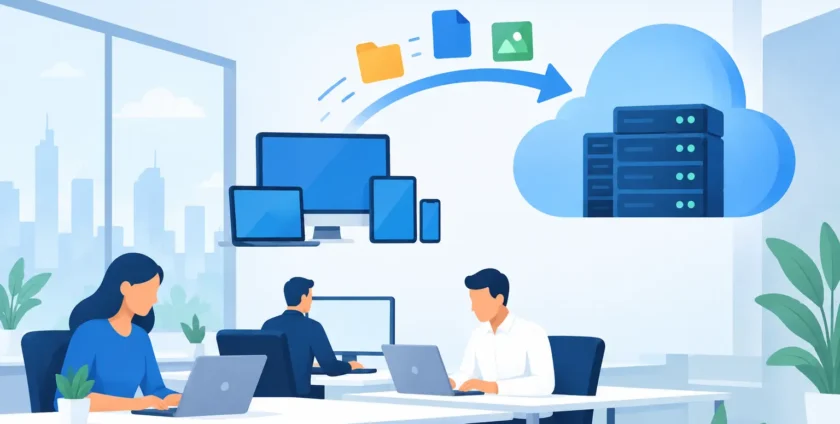
A cloud move can solve real office problems: files trapped on a server, staff unable to work from home, ageing hardware and recovery plans that depend on one person knowing where everything sits. But moving too quickly can replace those problems with new ones, including missing files, confusing access permissions and unexpected costs.
This cloud migration guide for offices is designed for Australian businesses that need a practical path forward. The goal is not to move every system simply because it can be moved. It is to give your team reliable access to the tools and data they need, while protecting operations throughout the change.
Start With What Your Office Actually Needs
Cloud migration means moving data, applications or infrastructure from on-site equipment to cloud-based services. For many offices, this includes Microsoft 365 email and files, shared document storage, backups, accounting platforms, customer systems or line-of-business software.
The right destination depends on how your business operates. A small professional office may benefit from cloud email, shared files and managed mobile devices. A medical practice may need to consider practice management software, imaging systems, specialist integrations, privacy obligations and reliable access during busy appointment times. Some organisations will keep selected systems on-site or use a hybrid setup, particularly where legacy applications or large local data sets are involved.
Before selecting a platform, identify what is being used now. This should include servers, workstations, mobile devices, email accounts, shared folders, applications, licences, printers, internet services and backup arrangements. It sounds basic, but an incomplete inventory is one of the most common causes of migration delays.
Ask each department what they cannot afford to lose access to, when their busiest periods occur and which files or applications are critical to customer service. This turns a technology project into an operational plan.
Build a Cloud Migration Plan Before Moving Data
A good migration plan sets clear boundaries. It defines what will move, what will stay, who approves changes and how staff will keep working while systems are transferred.
Start by separating data into useful categories. Active files used daily should be easy to find and access after the move. Older records may need to be retained for legal, contractual or business reasons, but they may not need to sit in the same location as everyday documents. Duplicate, obsolete and personal files can create unnecessary storage costs and make permission settings harder to manage.
Your plan should also name system owners. Someone in the business should confirm that data is complete and applications work as expected after each stage. For a medical office, this may include the practice manager, lead clinician and software vendor. For a general business, it might be the office manager, finance team and department heads.
Set a realistic migration order
Not every service should move at once. A staged approach reduces risk and makes troubleshooting easier. Many offices begin with email and collaboration tools, then shared files, then servers or specialist applications. This allows staff to become comfortable with new sign-in processes and storage locations before more complex systems are changed.
Timing matters as much as technical planning. Schedule major cutovers outside peak trading hours where possible, and avoid payroll runs, month-end processing, patient recall periods or major project deadlines. A migration window should include time for testing, user support and a fallback option if something does not perform as expected.
Confirm costs beyond the monthly subscription
Cloud services often have predictable monthly pricing, but the subscription is not the whole budget. Allow for migration labour, licence changes, upgraded internet, backup services, security tools, user training and support after go-live.
There can also be savings. Retiring an old server may reduce replacement costs, electricity use and the time spent dealing with hardware faults. The point is to compare the full operating cost, not just the price of a cloud licence against a server that has already been paid for.
Protect Data and Access From Day One
A cloud platform is only as safe as the way it is configured and managed. Moving files from an office server into a cloud folder without setting permissions properly can expose sensitive information to the wrong people.
Access should be based on job roles, not convenience. Staff need the information required to do their work, while finance records, HR documents, patient information and management files should be restricted appropriately. Review shared accounts as well. They make it difficult to track activity and should generally be replaced with individual user accounts.
Multi-factor authentication should be enabled for email, file storage, remote access and administrator accounts. This gives your business another layer of protection when a password is guessed, reused or obtained through a phishing email. Staff also need clear guidance on unexpected login prompts, suspicious attachments and requests to change bank details.
For offices handling health or other sensitive information, security planning needs particular care. Confirm where information is stored, how it is backed up, who can access it and what happens when a staff member leaves. Your software providers may also have specific requirements for hosting, integrations and supported configurations.
Backups Still Matter in the Cloud
A common assumption is that cloud storage removes the need for backups. Cloud services provide valuable protection against hardware failure, but they may not protect you from every situation, such as accidental deletion, incorrect synchronisation, malicious activity or a user overwriting an important file.
A separate backup plan gives your business options when something goes wrong. It should cover the systems that matter most, have a defined retention period and be tested regularly. A backup that has never been restored is not a recovery plan.
Decide how quickly key systems must be restored and how much data your business can afford to lose. A business that can tolerate a few hours without archived records has different requirements from a practice that relies on live patient schedules throughout the day. These decisions help set realistic backup frequency and recovery priorities.
Prepare Staff for the New Way of Working
The technical migration may happen over a weekend, but staff adoption takes longer. People need to know where files are stored, how to share them securely, what to do if they are locked out and who to contact for help.
Keep training focused on the tasks people perform every day. Show staff how to sign in securely, locate shared files, use approved collaboration tools and work safely from mobile devices. A short, role-specific session is usually more useful than a long demonstration of every feature available.
Communication should begin before the migration. Let staff know what is changing, when it is happening and whether they need to take any action. During the first week, expect questions about missing folders, permissions and new sign-in prompts. Fast, patient support prevents small frustrations from becoming workarounds that create security problems later.
Test Before and After the Move
Testing is where a migration plan becomes dependable. Before the main change, move a small sample of data or a pilot group of users. Check file access, folder permissions, email delivery, application performance, printing, remote access and mobile device use.
After each stage, compare what moved with the original inventory. Confirm that files are complete, users can access what they need and former access has been removed where required. Test backups and confirm that key applications still integrate correctly.
Keep the old system available for an agreed period where practical, but do not let it become an unofficial second workplace. Once the new environment is confirmed, clearly communicate the source of truth for files and business records.
Keep Managing the Environment After Go-Live
Cloud migration is not a one-off fix. User accounts change, staff leave, licences need review and new security threats emerge. Regular maintenance keeps the benefits in place.
Review access permissions, inactive accounts, backup reports, device updates and security alerts on a set schedule. Monitor storage use and licence allocation so costs remain controlled. As your business changes, assess whether new applications connect safely with your existing environment rather than adding another isolated system.
For many businesses, having a local IT partner makes this ongoing work easier. Onsite Technology Solutions can assist with planning, Microsoft 365 support, security controls, backups and on-site or remote help when an office needs practical support through the transition.
A well-planned cloud move should leave your team with fewer technology obstacles, not a new set of them. Start with the systems that will make the biggest difference to daily work, test carefully and give staff a clear path to help when they need it.
- By:
- Category: Uncategorized
- 0 comment