
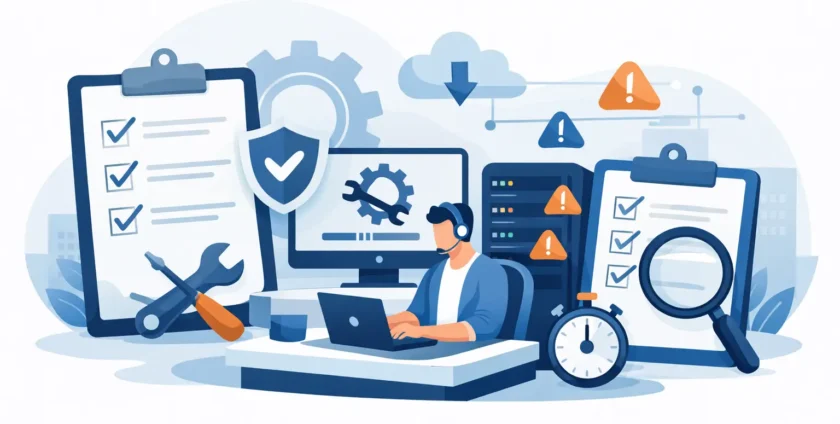
A staff member locked out of email, a practice system running slowly or a server that fails on a busy Monday morning can quickly become a business-wide problem. A clear business IT support checklist helps you spot gaps before they interrupt work, frustrate customers or put business data at risk.
For small and mid-sized businesses, IT should not be something you only think about when it stops working. The aim is simple: keep people productive, protect information and make sure help is available when an issue cannot wait. That takes more than buying the right devices. It requires ownership, routine checks and a support plan that suits how your team actually works.
Business IT Support Checklist: The Essentials
Use this checklist as a practical starting point for reviewing your technology environment. Not every business needs the same level of support. A two-person office has different requirements from a medical practice with multiple locations, shared clinical systems and strict availability needs. However, these areas matter in almost every workplace.
1. Know what technology you have
You cannot effectively support equipment, software or accounts that no one has recorded. Keep an up-to-date inventory of desktops, laptops, mobiles, printers, network equipment, servers and key cloud subscriptions. Include who uses each device, its age, warranty status and whether it holds or can access sensitive business information.
Also document the applications that keep the business moving. This may include Microsoft 365, accounting software, point-of-sale platforms, industry-specific systems, document storage and customer management tools. For healthcare providers, include clinical and practice management applications, imaging systems and any connected devices that affect daily operations.
This record makes support faster. When a staff member calls with an issue, your IT provider should be able to see what they use, what access they need and whether there is a known history with that device.
2. Give each person the right access – and no more
User access is often overlooked because it seems routine. Yet former staff accounts, shared passwords and overly broad permissions are common causes of security and productivity problems.
Make sure every team member has an individual account, particularly for email, cloud storage and business applications. Turn on multi-factor authentication for important systems and remove access promptly when someone leaves or changes roles. Review administrator access carefully. Most users do not need the ability to install software, change security settings or access every shared folder.
Shared mailboxes and shared files can still be useful, but access should be controlled and reviewed. Convenience matters, but it should not come at the cost of accountability.
3. Keep devices updated and protected
Unpatched software gives cybercriminals an easy way in. Operating systems, browsers, business applications and security tools need regular updates, ideally managed centrally rather than left to individual staff members.
Every workstation, laptop and server should have managed malware protection in place. Security monitoring should alert someone when protection is disabled, a device is out of date or suspicious activity needs attention. Mobile devices also deserve consideration, especially when staff access email, client records or cloud files away from the office.
A practical approach balances protection with business needs. Applying every update immediately may not suit a specialised application or medical device environment where compatibility must be checked first. The key is to have a process: test where needed, schedule updates and avoid leaving systems exposed indefinitely.
4. Confirm backups can actually be restored
A backup is only useful if you can restore from it. Check what is being backed up, how often, where the backup is stored and how long copies are retained. Important data may sit in more places than expected: on local servers, staff laptops, cloud storage, email platforms and line-of-business applications.
Cloud services are valuable, but they do not automatically replace a proper backup and recovery plan. Accidental deletion, ransomware or a configuration problem can still affect files and mailboxes. Ask how quickly essential systems could be restored and who is responsible for doing the work.
Test the process regularly. Restoring a sample file is useful, but it does not prove that a critical server, database or business application can be recovered within an acceptable timeframe. For a medical practice or customer-facing business, even a few hours without key systems may be too long.
5. Plan for outages before they happen
Business continuity is about keeping operations running when something goes wrong. That could be a power issue, hardware failure, internet outage, cyber incident, water damage or simple human error.
Identify the systems your business cannot operate without and decide what happens if each one is unavailable. Can staff work from another location? Can they use mobile internet temporarily? Is there a manual process for taking bookings, processing orders or recording essential information? Who informs staff, customers and suppliers if an outage continues?
Your plan does not need to be a lengthy document that sits in a drawer. It needs clear contacts, realistic actions and regular review. The people responsible should know where to find it even if normal systems are unavailable.
6. Make support easy to reach
When staff do not know how to report an issue, they lose time trying to fix it themselves or rely on whoever seems most technical in the office. Give your team one clear way to request help, whether that is a support phone number, email address or ticket system.
Set expectations for response times. A printer issue may be inconvenient, while a staff-wide email outage or failed practice system is urgent. Good IT support should prioritise issues based on business impact, communicate clearly and keep ownership until the problem is resolved.
Remote assistance resolves many problems quickly, including password resets, software faults and Microsoft 365 access issues. But some faults require a technician on site, particularly when network equipment, servers, cabling or multiple devices are affected. A support arrangement that provides both options gives your business more flexibility when time matters.
7. Review your Microsoft 365 setup
Many businesses rely on Microsoft 365 every day but only use a fraction of its controls. Review who has licences, which accounts have elevated permissions, how shared mailboxes are managed and whether multi-factor authentication is enforced.
Check that email forwarding rules are monitored and external sharing settings match your business requirements. A team that regularly works with external contractors may need controlled sharing. A healthcare provider handling patient information may need tighter restrictions and more careful access reviews.
Mailbox storage, retention settings and phishing protection should also be reviewed. These settings can reduce avoidable disruption and make it easier to find information when staff need it.
8. Train staff for the risks they face
Most security incidents begin with an ordinary-looking email, a reused password or an unexpected request for payment. Technology can block many threats, but staff are still a critical line of defence.
Provide straightforward guidance on suspicious emails, password use, reporting lost devices and handling sensitive information. Keep the training relevant. A short reminder using examples that reflect your workplace is more likely to be remembered than a technical presentation full of jargon.
Make reporting easy and blame-free. Staff should feel comfortable asking, “Does this look right?” before clicking a link or sending confidential information. Early reporting gives your IT team a better chance to contain a problem.
9. Review costs, contracts and ageing equipment
IT spending is easier to manage when it is planned. Review recurring software subscriptions, internet services, support arrangements, warranties and devices approaching end of life. Older computers do not always need immediate replacement, but repeated faults, slow performance and unsupported operating systems usually cost more in lost time than they save in purchase delays.
Build a replacement schedule based on business importance rather than replacing everything at once. Prioritise devices used by key staff, servers with limited warranty coverage and equipment that can no longer run supported software securely.
Turn the Checklist Into Ongoing Support
A checklist is most useful when it becomes part of a routine. Review security, backups and critical systems monthly. Review access when staff join, move roles or leave. Conduct a broader technology review at least annually, including continuity planning, equipment condition and future business needs.
For many businesses, assigning all of this to an office manager or business owner is not realistic. They may be able to coordinate the information, but monitoring devices, responding to incidents and maintaining systems takes specialist time. A managed IT partner can handle the ongoing work while giving your team a clear point of contact when something goes wrong.
Onsite Technology Solutions supports Melbourne businesses with remote and on-site assistance, security protection, Microsoft 365 support and continuity planning, so technology is managed as one connected environment rather than a collection of separate problems.
The best time to address an IT gap is when everyone is calm and systems are working. A little planning now can prevent a rushed decision when your business can least afford downtime.
- By:
- Category: Uncategorized
- 0 comment