
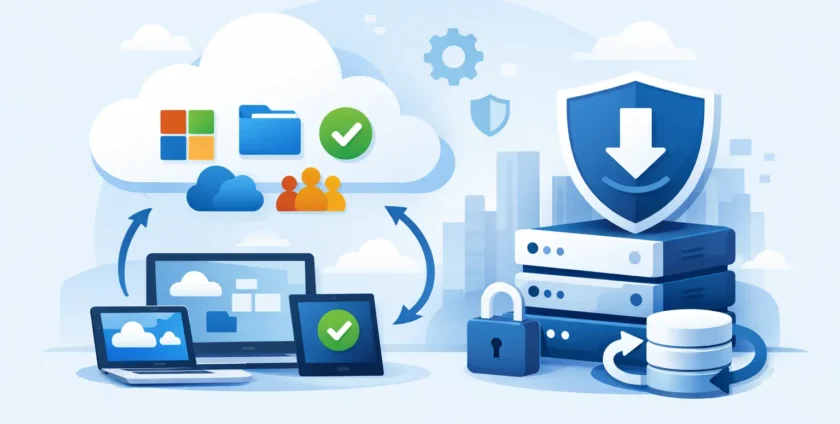
A deleted Outlook mailbox, an overwritten Excel workbook or a SharePoint folder removed by mistake can stop work far more quickly than most businesses expect. So, does Microsoft 365 need backup? For most organisations, yes. Microsoft 365 provides excellent cloud infrastructure and useful recovery features, but those features are not the same as a dedicated backup strategy that you control.
The difference matters when a staff member leaves, a cyber incident occurs, or someone discovers a critical file was changed weeks ago. At that point, the question is not whether Microsoft 365 was available. It is whether your business can recover the exact information it needs, when it needs it.
Does Microsoft 365 need backup beyond Microsoft’s protection?
Microsoft is responsible for the underlying cloud platform: the data centres, physical security, service availability and resilience of its infrastructure. Your business is still responsible for its data, users, access settings and recovery requirements. This is commonly described as a shared responsibility model.
Microsoft 365 includes recycle bins, version history, retention settings and other tools that can help recover some content. These are valuable features and should be configured properly. However, they are designed around day-to-day collaboration and platform operations, not necessarily your specific business continuity, legal or long-term recovery needs.
For example, an employee may permanently delete a mailbox or OneDrive files after retention periods have passed. A compromised account may remove or encrypt data across several locations. An incorrectly configured retention policy can preserve the wrong information, or fail to preserve what you expected. Recovering a single item is one thing; restoring a complete user, mailbox or SharePoint site quickly is another.
A separate backup gives your organisation an independent copy of key Microsoft 365 data. It is a practical safety net if native recovery options are no longer available, do not go back far enough, or are too slow and complicated for the situation.
What Microsoft 365 data should be backed up?
The right scope depends on how your team works, but most small and mid-sized businesses should consider protecting Exchange Online mailboxes, OneDrive, SharePoint and Microsoft Teams. These services often hold the information people rely on to serve customers, run projects, invoice clients and make decisions.
Exchange Online mailboxes
Email is still a core business record. Staff may need to retrieve client approvals, quotes, correspondence, attachments and calendar information long after an email was sent or deleted. Mailbox backup can help recover individual messages, folders, contacts, calendars or an entire mailbox when required.
This is especially useful during offboarding. If a departing team member’s account is deleted or licensing changes, a proper backup process helps preserve business correspondence without keeping unnecessary accounts active indefinitely.
OneDrive, SharePoint and Teams
These services are closely connected. A document shared in Teams may be stored in SharePoint, while a user’s working files may sit in OneDrive. Version history offers a degree of protection against accidental edits, but it is not a complete substitute for a separate copy with clear retention and restoration options.
A business also needs to consider shared folders, project sites, team channels and permissions. Restoring the file is only part of the job. In some cases, you need its original location, associated content and access structure restored as well.
For medical practices and other organisations handling sensitive information, reliable recovery has an added operational benefit. If staff cannot access procedures, referral documents, rosters or administrative records, patient-facing work can be disrupted quickly. Backup planning should support continuity without creating unnecessary complexity for the team.
The real risks are usually ordinary mistakes
Many businesses picture backup as protection from a major outage. Large-scale outages do happen, but the more common problems are usually closer to home: accidental deletion, incorrect permissions, a rushed staff change, a sync error or a phishing attack that leads to account compromise.
Ransomware is another concern. If malicious activity encrypts, deletes or changes cloud-based files, synchronisation can spread those changes across devices and services. Recovery depends on having clean, recoverable versions available and knowing exactly how to restore them.
There are also compliance and record-keeping considerations. Your business may need to keep particular documents or communications for a defined period. Retention policies can assist with this, but backup and retention serve different purposes. Retention keeps information according to a rule. Backup creates recoverable copies for restoration. A sound plan may use both.
Backup is not a replacement for Microsoft 365 security
A backup copy will not prevent a suspicious sign-in, phishing email or unauthorised access. It helps you recover after something goes wrong. That is why backup should sit alongside sensible Microsoft 365 administration rather than replacing it.
At a minimum, businesses should use multi-factor authentication, strong access controls, appropriate user permissions and regular software updates. Staff also need clear guidance on handling unexpected links, attachment requests and password prompts. The best recovery is the one you never need, but it is still wise to prepare for the day a mistake or attack gets through.
For organisations with limited internal IT resources, the challenge is often consistency. Settings are changed, staff join and leave, devices are replaced, and no one has time to check whether recovery processes still work. Managed IT support can keep these controls under review while giving staff a clear contact point when something needs attention.
How to choose a Microsoft 365 backup approach
There is no single retention period or backup design that suits every business. A small office with basic email and documents has different needs from a medical clinic managing operational records, or a professional services firm with years of client files.
Start with the outcome you need. Ask how much data you could afford to lose, how quickly your team would need it back, and which information would cause the greatest disruption if unavailable. A business that can tolerate a few hours without a non-critical folder may need a different approach from one that cannot operate without email or shared documents.
When assessing a backup solution, look for clear coverage of the Microsoft 365 services you use, automated backups, flexible retention, secure storage and simple restoration options. You should be able to restore a single email or file without rebuilding an entire environment. It should also be possible to recover a user or larger set of data when a more serious incident occurs.
Administration matters as much as features. Someone needs to monitor backup status, investigate failures, review user changes and test restorations. A backup that has never been tested is an assumption, not a recovery plan.
Set recovery expectations before an incident
A practical backup plan documents who can request a restore, who approves it, and where staff should report a suspected data loss incident. This avoids confusion when time is limited. It also helps prevent a rushed action from making the situation worse.
Regular recovery testing is worthwhile. Choose a non-critical file or email, restore it, and confirm that the process works as expected. Test the time it takes, not just whether restoration is technically possible. If a key SharePoint library takes longer than your business can tolerate, the plan may need adjustment.
Keep this process straightforward. Business owners and practice managers do not need to become backup specialists, but they should know what is protected, how long it is kept, and who owns the process. Clear answers build confidence when staff depend on cloud services every day.
Microsoft 365 is a strong platform, but availability is not the same as recoverability. A dedicated backup gives your business more control when files disappear, accounts are compromised or a critical record needs to be brought back. The most helpful next step is to review the data your team could not afford to lose, then make sure recovery is more than a hope.
- By:
- Category: Uncategorized
- 0 comment