
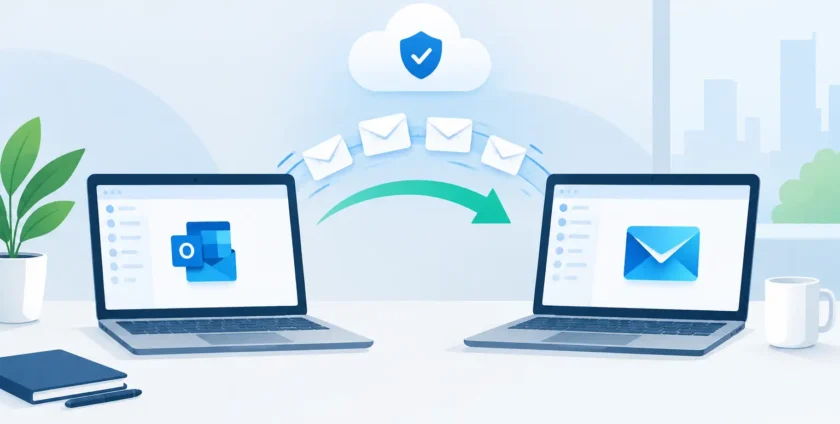
Email is where quotes are approved, appointments are confirmed, supplier invoices arrive and customers expect an answer. When you migrate office email, even a short interruption can create confusion across the business. The goal is not simply to move mailboxes to a new platform. It is to keep your people communicating, preserve important records and make sure every device keeps working when the change is complete.
For a small business, email migration can look straightforward until older messages, shared inboxes, mobiles and third-party applications enter the picture. A planned approach reduces risk and gives staff confidence that they will not lose access to the information they rely on every day.
Why businesses migrate office email
Most organisations move email because their current service has become difficult to manage, lacks security controls or no longer suits the way staff work. Microsoft 365 is a common destination because it brings business email, calendars, file collaboration and user management into one managed environment.
A move may also follow a change of domain name, a business acquisition, an office relocation or the need to improve backup and cyber security arrangements. Medical practices can have additional reasons: patient communications must remain available, staff need reliable access from consulting rooms and administrative systems may rely on specific email addresses to send notifications.
The benefits are real, but they depend on good preparation. Moving quickly without understanding what is connected to email can leave staff unable to send messages, access calendars or receive automated alerts from important systems.
Start with an email migration assessment
Before changing anything, build a clear picture of the existing environment. This is the stage that prevents most avoidable surprises. Identify every mailbox, including former staff accounts that may hold records the business needs to retain. Confirm how much data each account contains and whether old mail needs to move in full or can be archived under an agreed retention policy.
Shared mailboxes deserve particular attention. Accounts such as reception@, accounts@ or bookings@ are often used by several people, with permissions added over time. Document who has access, which folders matter and whether rules are forwarding messages elsewhere. If these details are missed, a team may still receive email after the change but lose access to the shared history they need to do their job.
Also check the less obvious connections. Printers and scanners may use email to send scans. Website contact forms, accounting platforms, security systems, practice management software and backup tools may all send messages through your domain. These services need to be tested and, where necessary, reconfigured after the migration.
A useful assessment should cover at least these five areas:
- active, shared and former staff mailboxes, including mailbox sizes and retention needs
- email addresses, aliases, distribution lists and forwarding rules
- desktop computers, mobiles and tablets that access email
- software, printers and business systems that send or receive email
- domain records, licence requirements and current security settings
This is also the right time to decide what success looks like. For some businesses, a short after-hours cutover is suitable. Others need a staged approach because reception, sales or clinical teams cannot risk losing access during operating hours.
Choose the right timing and migration method
There is no single best way to migrate office email. The right method depends on the number of users, the age of the current system, how much historical mail needs to move and how much downtime the business can tolerate.
A small office moving from a hosted email provider may be able to migrate all mailboxes over a weekend. Larger organisations or businesses with substantial mail archives may need to transfer data in batches, then complete a final sync just before the new service goes live. This reduces the amount of recent mail that must be caught up during the cutover.
Timing matters as much as technology. Avoid payroll days, major client deadlines, school holiday periods if key staff are away, and times when a medical practice is fully booked. Let staff know what will change, when it will happen and what they should do if they cannot sign in. Clear instructions are better than a technical explanation. Most people need to know whether their password will change, whether their mobile needs to be updated and who to contact for help.
Protect data before the switch
A migration is not a substitute for backup. While reputable cloud email platforms offer strong availability, businesses should still have a clear plan for recovering important mail, calendars and contacts if a user deletes something or a migration setting is incorrect.
Before the change, take a verified backup or export of critical mailboxes where appropriate. Confirm that migration tools are copying the required folders, sent items, contacts and calendars. It is worth checking a sample mailbox in detail before transferring every account. A quick test can reveal issues with folder mapping, character limits or large attachments while there is still time to adjust the plan.
Security should be improved as part of the project, not left for later. Enable multi-factor authentication, review administrator access and remove outdated accounts. Set up spam and malware filtering, then make sure staff understand how to report suspicious messages. Cyber criminals often take advantage of change, sending fake password-reset or new-login emails when staff expect to receive them.
For healthcare providers, email handling should align with the practice’s privacy obligations and internal procedures. Patient information should not be treated as ordinary correspondence. Access controls, secure devices and sensible retention practices all matter.
Manage the cutover carefully
The cutover is the point where your domain’s email delivery settings are directed to the new provider. This is a critical step, but it should not be a mystery. A good migration plan assigns responsibility, includes a fallback option and schedules someone to monitor the change while staff begin using the new service.
Once the new settings are live, test both incoming and outgoing email using external addresses. Check that messages arrive in the correct mailbox, that replies come from the expected address and that shared mailboxes work for authorised users. Test calendar invitations, mobile access and any devices or applications that send automated emails.
Do not assume a successful sign-in means the migration is finished. Check that older folders are visible, recent mail has arrived and users can find contacts and calendar entries. Reception and accounts teams are useful early testers because they tend to handle shared inboxes, attachments and high volumes of email.
Support staff after the migration
The first business day after a move is when small issues become visible. A staff member may have an old password saved on their mobile, Outlook may need to be reconfigured, or a scanner may stop emailing PDFs. Fast support keeps these issues from becoming a disruption to the wider business.
Provide a simple point of contact for the first week and encourage staff to report problems early. Keep an eye on mail flow, failed delivery reports and unusual login activity. If a message appears to be missing, check both the old and new systems before assuming it has been lost. In many cases, it is delayed by a DNS change, sent to a filtered folder or sitting in a mailbox that was not configured correctly.
It is also a good time to tidy up. Remove unnecessary forwarding rules, close obsolete accounts, review shared mailbox access and make sure departing staff are not still receiving business email. These small improvements reduce risk well beyond the migration date.
When to bring in IT support
Businesses can handle a simple move internally, particularly when there are only a few standard mailboxes and no complex systems connected to email. However, professional support is worthwhile where there are shared mailboxes, large archives, multiple locations, medical software, domain changes or a low tolerance for downtime.
A managed IT provider can assess the environment, coordinate the migration, configure security and support staff on the day. For Melbourne businesses, having a local team available for remote or on-site assistance can make a practical difference if a key workstation, printer or reception inbox needs attention quickly.
At Onsite Technology Solutions, we approach email migrations as a business continuity task, not just an account setup task. The right preparation means your team can continue answering customers, booking appointments and running the business while the technology changes in the background.
A well-managed email move should leave the business in a better position than before: clearer access, stronger security and fewer hidden workarounds. Plan it around your operations, test the details that matter and make sure help is ready when your staff need it.
- By:
- Category: Uncategorized
- 0 comment