
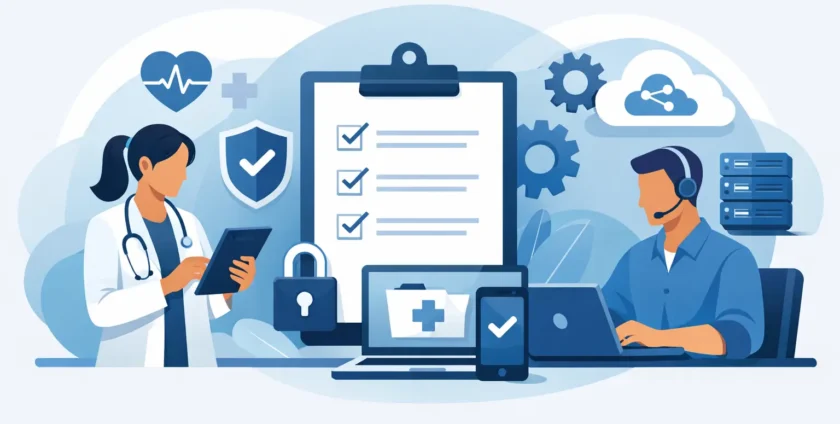
A medical practice can keep seeing patients through a busy day only if its technology keeps pace. When the practice management system stalls, internet drops out or a staff member cannot access a patient record, appointments back up quickly. This medical practice IT checklist helps practice managers identify the systems, safeguards and support arrangements that keep clinical operations moving.
The aim is not to buy every available tool. It is to make sure the technology your team already depends on is documented, protected and supported when something goes wrong.
Medical practice IT checklist: start with critical systems
Begin by listing every system required to open the doors and treat patients. This sounds basic, but many practices only discover a dependency when it fails. Include your practice management software, clinical records platform, appointment reminders, Medicare and claiming tools, billing, imaging access, pathology portals, email, phones, internet connection and payment terminals.
For each system, record who supplies it, who manages it, the support contact details, login ownership and what happens if it is unavailable. A radiology portal may be supported by one provider while the workstation, network and user access are managed by another. Clear ownership prevents time being lost between suppliers when an issue needs urgent attention.
Your register should also identify the most time-sensitive systems. For most clinics, patient records, bookings, internet, phones and clinical workstations sit at the top of the list. This priority order gives your team and IT provider a practical basis for responding during an outage.
Check the devices staff use every day
Reliable care starts with reliable equipment. Walk through reception, consulting rooms, treatment areas and back-office spaces to identify every desktop, laptop, tablet, printer, scanner, mobile and network-connected device. Record its age, location, primary user and purpose.
Older devices are not automatically a problem, but they become a risk when they cannot run current security updates, perform slowly during consultations or have no replacement plan. A workstation used solely for recalls has a different urgency from the computer used to access records during every appointment. Both need support, but not necessarily the same replacement timetable.
Pay particular attention to shared devices. A front-desk PC used by several staff members can become a single point of failure if no alternative workstation is ready. Printers and scanners also matter more than they first appear. If referrals, consent forms or patient correspondence cannot be printed or scanned, the administrative impact can be immediate.
A useful review should confirm that:
- all supported devices receive operating system and application updates;
- antivirus or managed endpoint protection is active and reporting correctly;
- business devices are encrypted where appropriate, especially laptops and mobiles;
- unused devices and old user accounts are removed from the environment; and
- a replacement plan exists for ageing computers, network hardware and batteries in backup power equipment.
Make access secure without making work difficult
Medical practices need staff to access information quickly, but convenience should not mean shared passwords or unrestricted access. Every employee should have their own user account, with access based on their role. Reception staff may need appointments, billing and correspondence, while clinicians need access to records and clinical systems. Not everyone needs administrator access or full access to every business folder.
Multi-factor authentication should protect email, cloud services, remote access and any other system that holds sensitive information. It adds a small step at sign-in, but it can stop a stolen password from becoming a major incident.
Review access whenever someone joins, changes roles or leaves the practice. Departing staff accounts should be disabled promptly, including email, cloud storage, practice software and mobile device access. This is often overlooked when a staff member leaves on good terms, yet it remains a basic part of protecting patient and business information.
Password managers can also reduce the temptation to reuse simple passwords or write them on paper near a workstation. The right approach depends on the size of the practice and the applications in use, but the principle is consistent: access should be traceable, controlled and easy to remove.
Protect the network, email and patient information
The clinic network is more than the Wi-Fi password. It connects workstations, cloud services, printers, phones and sometimes clinical equipment. A properly configured business network separates guest Wi-Fi from the systems that handle patient information. Patients and visitors should never be able to connect to the same network segment as clinical devices and staff computers.
Email deserves special attention because it remains a common entry point for malware, invoice fraud and credential theft. Staff do not need technical training to be useful here. They need clear guidance on checking unexpected links, unusual payment requests, password reset messages and attachments that do not fit the sender or context.
Technology controls and staff awareness work together. Email filtering, endpoint protection, updates and restricted user permissions can limit harm, while regular training helps staff recognise suspicious activity before it spreads. Short, relevant reminders are generally more effective than a once-a-year presentation full of technical jargon.
If your practice uses cloud storage or Microsoft 365, confirm where files are stored, who can share them externally and whether access is monitored. Cloud services can improve flexibility, but they still need sensible configuration and ongoing administration.
Test backups and plan for downtime
A backup that has never been tested is an assumption, not a recovery plan. Your practice should know what is backed up, how often, where copies are held and how long restoration would take. This applies to patient data, business documents, configuration information and any locally stored files that are needed to operate.
There is no single backup model that suits every clinic. A small practice using a fully hosted clinical platform may have different responsibilities from a larger practice with a local server and multiple specialist applications. Even where a software provider manages the platform, confirm what they back up, what they can restore and what remains the practice’s responsibility.
Document a simple downtime procedure for the most likely disruptions: internet failure, practice software outage, ransomware, power loss and a failed workstation. Include printed or securely available contact details, a way to record appointments or consultations temporarily, and a process for entering information once systems are restored.
The plan should be tested in a calm period, not written and forgotten. A 20-minute discussion with reception staff and clinicians can reveal practical gaps, such as no access to key phone numbers, no spare device or uncertainty about who can authorise emergency IT work.
Confirm support arrangements before an emergency
When systems fail, the practice needs to know exactly who will answer the call and what happens next. Check that your IT support provider has current contacts for the practice manager, owners and key clinical staff. They should also understand which systems are urgent and whether remote support is enough or an on-site technician may be needed.
A local provider can be particularly valuable when a hardware fault, network issue or new workstation setup cannot be resolved remotely. For Melbourne practices, having access to technicians who can attend when required removes the uncertainty of relying solely on distant support.
Ask practical questions about response times, after-hours coverage, supplier coordination and reporting. Good IT support does not simply fix a ticket. It keeps track of recurring faults, ageing equipment, security risks and changes that could affect how your practice operates.
Review the checklist regularly
Technology changes whenever a new staff member starts, a consulting room is added, software is replaced or a device is taken home. Review this checklist at least annually, and after any significant incident or practice change. Keep it as a working document rather than a compliance exercise filed away in a drawer.
The most useful next step is to choose one area that is unclear today, such as backups, user access or support contacts, and resolve it before it affects a patient appointment. Onsite Technology Solutions can help medical practices turn that review into a practical support and continuity plan, so your team can focus on care while we handle IT.
- By:
- Category: Uncategorized
- 0 comment