
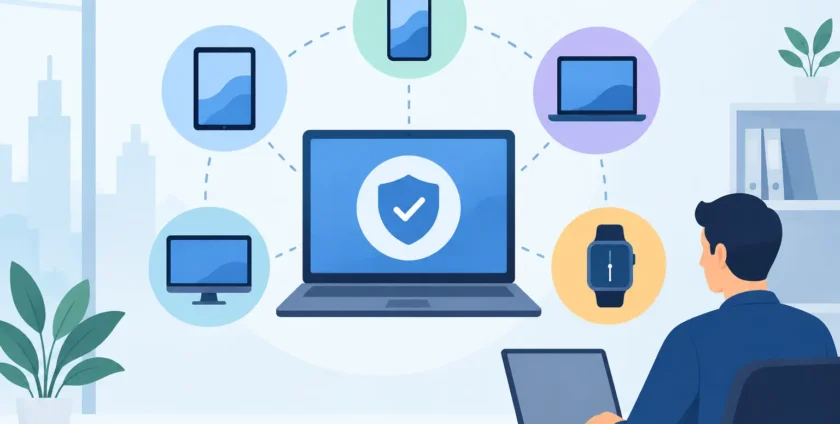
A staff member’s laptop is at home, their mobile is in the car, a shared workstation is at the office, and business files sit in Microsoft 365. That is a normal working day for many Australian businesses. Knowing how to manage hybrid devices means keeping every device secure, supported and ready for work, without creating extra hassle for your team.
Hybrid device management is not just about allowing people to work from different locations. It is about maintaining clear control over company technology when devices, users and applications move between the office, home, client sites and healthcare facilities. Done well, it reduces downtime, protects sensitive information and gives staff a consistent experience wherever they log on.
What hybrid devices look like in a business
A hybrid environment usually includes a mix of company-owned and personally owned devices. This can include desktop PCs and shared workstations in the office, laptops used at home or on the road, tablets for field staff, mobile phones for email and two-factor authentication, and specialised devices such as printers, scanners or clinical workstations.
The challenge is that each device may connect differently, run a different operating system and hold different levels of business information. A receptionist’s shared desktop does not need the same access as a director’s laptop. A clinician working with patient records requires tighter controls than a staff member checking rosters from a mobile.
Trying to manage this mix informally often leads to gaps. Updates are delayed, former staff retain access, files are saved locally, and support becomes harder because no one has a complete view of what is in use.
How to manage hybrid devices with clear ownership
The first step is to know exactly what you have. Create and maintain an asset register covering every device that connects to business systems. Record the device type, serial number, assigned user, location, operating system, warranty status and key applications. Include personal devices that have access to business email, cloud storage or other company data.
This register does not need to be complicated, but it needs to be current. When a new employee starts, a device is replaced or a staff member leaves, the record should be updated straight away. This makes it easier to plan replacements, investigate security incidents and provide faster support.
Clear ownership matters as well. Staff should know who to contact if a device is lost, damaged or behaving unusually. Your IT provider should know who can approve new equipment, changes to access permissions and urgent security decisions. Without those lines of responsibility, small problems can sit unresolved until they interrupt work.
Separate business access from personal use
Bring-your-own-device arrangements can be practical and cost-effective, particularly for mobiles. However, they need boundaries. Staff should understand which business apps can be used, what security measures are required and what happens to company information when their employment ends.
The goal is not to take control of someone’s personal photos or private apps. It is to protect business data. Mobile device management tools can apply security settings to work accounts, require a screen lock and remove company information when needed, while leaving personal content alone.
For some organisations, especially medical practices, company-owned devices may be the better option for staff handling sensitive information. It depends on the role, the data involved and the level of control the organisation needs.
Set one security standard for every device
A hybrid workforce is only as secure as its least protected device. A laptop that misses updates or a mobile without a passcode can become an entry point for phishing, malware or unauthorised access.
Start with a standard security baseline. Every approved device should have supported software, automatic updates, business-grade antivirus or endpoint protection, encryption and a secure screen lock. Multi-factor authentication should be enabled for Microsoft 365, remote access and other systems that hold valuable business data.
Passwords still matter, but they are not enough on their own. Staff may accidentally share credentials through a convincing phishing email, particularly when they are working quickly outside the office. Multi-factor authentication adds a second check that can stop an attacker even when a password has been compromised.
Access should also be based on the person’s role. Give staff access to the files, applications and systems they need to do their job, rather than broad access by default. This reduces risk and makes offboarding simpler when a team member leaves.
Keep updates from becoming a disruption
Delaying updates is tempting when staff are busy. But unpatched devices are a common cause of avoidable security issues. The better approach is to schedule updates outside core operating hours where possible, monitor whether they have completed and deal with exceptions promptly.
Not every update needs to be handled in exactly the same way. Critical security patches should be applied quickly. Major operating system changes may need testing first, especially if your business relies on accounting software, practice management systems or specialised hardware. A managed approach balances security with the need to keep essential applications working.
Make support easy wherever people work
Hybrid device management should not leave remote staff feeling stranded. If someone cannot access email, connect to a shared folder or use a critical application, they need a clear path to help. Remote support resolves many issues quickly, while on-site assistance remains important for hardware faults, network problems and office equipment.
Set expectations with staff. Explain how to lodge a support request, what information to provide and what to do when an issue stops them from working. A simple process saves time for everyone. It also helps IT support identify recurring faults, such as unreliable home Wi-Fi, ageing laptops or an application that needs attention.
Standardising devices where possible makes support far easier. If every laptop is a different model with different software and settings, troubleshooting takes longer. You do not need identical equipment for every role, but a small number of approved device types and configurations will reduce complexity and control costs.
Protect data beyond the office network
When staff work remotely, the office network is no longer the only place data is accessed. Files may be opened from home Wi-Fi, downloaded to a laptop or viewed on a mobile. That makes cloud access settings, backups and secure sharing practices central to day-to-day operations.
Encourage staff to save work in approved cloud locations rather than on local desktops or USB drives. This gives the business a better chance of recovering files if a device fails, is stolen or is replaced. It also means colleagues can access the right version of a document without chasing email attachments.
Backups should be checked, not simply assumed. A backup that has never been tested may not be useful when a server fails or ransomware strikes. Your continuity plan should cover what happens if key systems are unavailable, who communicates with staff and how work can continue from another location.
For healthcare providers, this planning is particularly important. Patient care and practice operations cannot wait for a technology issue to be sorted out. Devices used to access clinical systems need reliable security, controlled access and a practical recovery process that supports the way the practice actually works.
Review devices as people and risks change
Hybrid device management is not a set-and-forget task. Review your device register, access permissions and security status regularly. Look for inactive accounts, devices that have not checked in, software nearing end of support and staff who have changed roles.
A quarterly review is often enough for a small to mid-sized business, with immediate action for staff departures, lost devices and suspected security incidents. This is also a good time to assess whether older equipment is slowing people down. Replacing a failing laptop before it disrupts a busy week is usually cheaper than dealing with the downtime after it fails.
The most effective approach is one that fits your business rather than a one-size-fits-all checklist. A small office may need simple, consistent controls and responsive support. A growing business or medical practice may need stronger device policies, more detailed monitoring and documented continuity arrangements. With the right management in place, your staff can work where they need to, while your technology remains under control.
- By:
- Category: Uncategorized
- 0 comment