
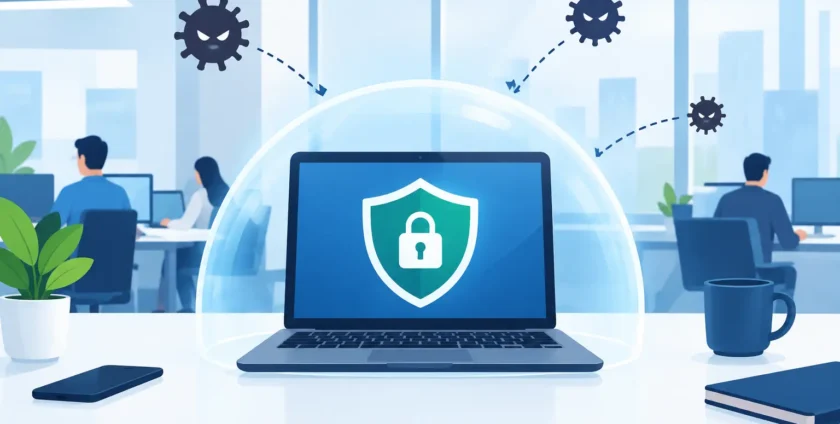
A suspicious invoice arrives in accounts. A staff member opens the attachment, believing it is from a regular supplier. Within minutes, files on a shared drive are encrypted and the office cannot access job records, emails or client information. This is why the best malware protection for offices is never just one antivirus program. It is a practical set of protections that stops threats early, limits their spread and gets your team back to work quickly if something slips through.
For small and mid-sized businesses, the right approach should reduce risk without making everyday work difficult. Your staff still need to access Microsoft 365, use mobiles, work remotely and share files with colleagues. Security needs to support the way your office operates, not become another obstacle.
What Makes Malware Protection Effective?
Malware is a broad term for harmful software designed to steal data, disrupt systems or gain unauthorised access. It includes ransomware, spyware, keyloggers, malicious browser extensions and programs that quietly use a device to attack others.
The risk is not limited to large corporations. Smaller businesses are often targeted because criminals expect fewer security controls, older systems and busy staff who may not have time to investigate every unexpected email. Medical practices are particularly exposed because patient information, clinical software and appointment systems are critical to daily operations.
Effective protection works in layers. If one control misses a threat, another should catch it. That might mean an email filter blocks a dangerous attachment before it reaches an inbox, or endpoint protection prevents a file from running after it has been downloaded. If a compromised device does get through, network controls and secure backups help contain the damage.
The goal is not to promise that an office will never receive a malicious email or encounter a new threat. The goal is to make a successful attack far less likely and far less damaging.
Best Malware Protection for Offices: The Core Layers
Managed endpoint protection on every device
Every work device needs business-grade endpoint protection, including desktops, laptops and mobiles that access company email or files. Consumer antivirus can provide a basic level of defence, but offices benefit from centrally managed protection that gives IT support visibility across all devices.
Modern endpoint tools look beyond known viruses. They can identify suspicious behaviour, such as an application attempting to encrypt large numbers of files, changing security settings or contacting known malicious services. When something looks wrong, the device can be isolated from the network while the issue is investigated.
Management matters as much as the software itself. Protection should be installed, kept current and checked regularly. A licence that has expired, a laptop that has not checked in for months, or a warning that nobody sees can leave a significant gap.
Email security that filters threats before staff see them
Email remains one of the most common entry points for malware. Criminals impersonate suppliers, delivery companies, banks, colleagues and Microsoft 365 notifications. Their messages can be polished and convincing, especially when they use information gathered from public websites or previous data breaches.
A properly configured email security service can scan attachments, block malicious links, identify impersonation attempts and quarantine suspicious messages. It should work alongside Microsoft 365 security settings, not replace them.
No filter catches every threat, so staff should know what to do when something does not look right. A simple process for reporting suspicious email is more useful than expecting employees to make a technical judgement on their own. Fast reporting gives your IT team the chance to remove similar messages from other inboxes before someone else opens them.
Patch management for operating systems and software
Malware often takes advantage of known weaknesses in Windows, browsers, office applications, firewalls and business software. Software vendors issue updates to close these gaps, but updates only help when they are applied promptly and consistently.
Patch management means more than clicking update when a reminder appears. It involves keeping an accurate record of devices, scheduling updates to minimise disruption and confirming that important patches have installed successfully. Critical security updates may need action sooner, while some application updates should be tested before a wider rollout.
This is one area where a managed IT provider can remove a lot of administration. Your team should not have to chase every laptop, server and remote worker to find out whether a patch has been missed.
Secure backups that cannot be easily encrypted
Backups are essential protection against ransomware, accidental deletion and hardware failure. But not all backups offer the same protection. If backup data is always connected to the same network and uses the same administrator credentials, ransomware may be able to encrypt or delete it as well.
A sound business continuity plan includes regular, monitored backups with a protected copy that cannot be altered by an infected device. It also includes recovery testing. A backup is only useful if you can restore the files, applications and systems you need within an acceptable timeframe.
For a medical practice, that may mean prioritising clinical systems, patient records, imaging access and appointment software. For another office, it may be accounting data, job management systems or shared project files. The right backup design depends on what your business cannot operate without.
Multi-factor authentication and sensible access controls
Malware protection also starts with protecting user accounts. Stolen passwords can let an attacker access email, cloud files and business systems without needing to install malware at all.
Multi-factor authentication adds an extra check when someone signs in, such as an approval through an authenticator app. It is especially valuable for Microsoft 365, remote access, administrator accounts and cloud applications containing sensitive information.
Access should also match each employee’s role. Staff do not all need permission to install software, access payroll folders or make changes to critical systems. Limiting access reduces the damage that can occur if an account is compromised.
Staff Awareness Is a Practical Security Control
People are often described as the weakest link in security. That is not especially helpful. Staff are usually trying to work quickly and serve customers well. The better approach is to give them clear, relevant guidance and make it easy to ask for help.
Short, regular awareness training is more effective than a once-a-year presentation full of technical jargon. Show staff the warning signs they are likely to encounter: unexpected attachments, urgent payment requests, login pages that do not look quite right and messages asking them to bypass normal processes.
It is also worth setting practical rules. Staff should not use personal USB drives for work files, install unapproved software or share passwords. They should feel comfortable pausing a request that appears urgent if it involves money, credentials or confidential data. A quick phone call to confirm a supplier’s bank details can prevent a costly mistake.
Choosing the Right Level of Protection
The best solution depends on the size of your office, the systems you use and the consequences of downtime. A small team with cloud-based applications may need strong endpoint protection, email filtering, multi-factor authentication and reliable backups. A larger business may also require network segmentation, security monitoring, formal incident response planning and tighter controls for remote access.
Healthcare providers need to consider the availability and confidentiality of patient information. A security incident can affect more than productivity. It can interrupt patient care, delay appointments and create serious privacy obligations. Protection should be planned around the systems that keep the practice running, including specialised medical applications and connected devices.
Price should be considered, but the cheapest option is not always the most affordable over time. A tool that is installed but not monitored can create a false sense of security. Managed protection costs more than a standalone licence, yet it may prevent extended downtime, lost data and the pressure of trying to coordinate a response during an incident.
Ask practical questions before choosing a provider or solution. Who receives security alerts? How quickly are threats investigated? Are all office and remote devices covered? How often are backups tested? Can someone attend on site if a critical system needs hands-on support? Clear answers matter more than an impressive-looking feature list.
What to Do If You Suspect Malware
Speed matters. If a device displays a ransomware message, behaves unusually, has files with unfamiliar extensions or sends suspicious emails, disconnect it from the network straight away. Turn off Wi-Fi, unplug the network cable and contact your IT support provider. Do not keep clicking through pop-ups, attempt to delete unknown files or reconnect the device to see whether the problem has gone away.
Your IT team can assess the device, identify whether other systems are affected, preserve evidence and begin recovery where required. Early action can turn a single compromised laptop into a contained incident rather than an office-wide outage.
Good malware protection gives your office more than another security application. It gives your team a clear plan, a safer working environment and support when an issue needs immediate attention. With the right layers in place and a responsive local IT partner behind them, your business can keep moving even when threats do not stop.
- By:
- Category: Uncategorized
- 0 comment