
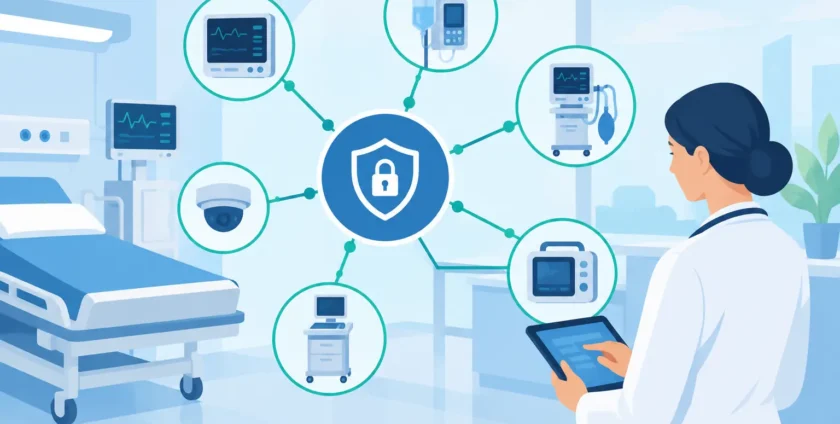
A network issue in a medical practice is rarely just an internet issue. It can stop a receptionist checking in patients, interrupt access to imaging, disconnect a monitoring device or delay a clinician who needs records during an appointment. This medical device network guide explains how practices can build a safer, more dependable environment for connected clinical equipment without making day-to-day IT harder to manage.
For practice managers, the goal is straightforward: keep care moving, protect patient information and know exactly who to call when something goes wrong. The right setup does not need to be unnecessarily complex, but it does need to be planned around the devices and systems your team relies on.
Why medical device networks need their own approach
Medical devices are not the same as staff laptops, tablets or mobile phones. Many run specialist software, use older operating systems, require a fixed network address or can only be updated by the manufacturer. A device may also need to communicate with a server, a cloud portal, an imaging workstation or practice management software.
That creates a practical challenge. A standard office network is often designed for flexibility: users connect new devices, browse online, share files and work remotely. Clinical equipment needs consistency. An unexpected update, a changed Wi-Fi setting or an overly aggressive security rule can affect a device that staff need for patient care.
At the same time, leaving devices open to the wider network creates risk. Medical equipment can hold sensitive information or provide a path into other systems if it is not properly controlled. A good design balances availability with security. It does not treat every device as identical.
Start with a complete device and system record
Before changing network settings or buying new hardware, document what is already in place. This is the step many practices skip, particularly when equipment has been added over several years by different suppliers.
Your record should identify each connected clinical device, where it is located, how it connects, who supports it and what systems it needs to reach. Include scanners, imaging equipment, pathology analysers, monitoring devices, specialist printers, telehealth equipment and any workstation dedicated to a clinical application.
For each item, record the manufacturer, model, serial number, operating system where relevant, IP address, software version and support contact. It is also useful to note whether updates need supplier approval and whether the device needs internet access at all.
This information saves valuable time during an outage. Instead of trying to work out what changed while patients are waiting, your IT provider can see the device’s role, dependencies and support path. It also gives the practice a clearer picture before replacing a firewall, changing internet providers or moving systems to the cloud.
Ask suppliers the right questions
A device supplier may know the equipment well but not understand the rest of your practice network. Before installation, ask what ports, addresses and services the device requires, whether it needs wired or wireless connectivity, and how remote support is handled.
Also ask whether the device supports multi-factor authentication, encryption and current operating systems. The answer may be no, particularly for older equipment. That does not automatically mean the device must be replaced. It means the network around it needs sensible safeguards.
Separate clinical devices from everyday business traffic
Network segmentation is one of the most effective ways to reduce risk and prevent small problems spreading. Put simply, it separates parts of the network so a guest’s mobile phone, an office computer and a clinical device are not all operating in the same open space.
A typical practice may have separate network areas for clinical devices, staff computers, guest Wi-Fi, voice services and building systems such as cameras or access control. Rules then control which areas can communicate with each other.
For example, an imaging device may need to send files to a designated workstation and reach a specific vendor service. It should not need unrestricted access to every computer in the practice. Likewise, guest Wi-Fi should have no path to clinical equipment or patient systems.
Segmentation is not about blocking work. It is about allowing the traffic that is genuinely required and limiting everything else. This reduces the impact if a staff computer is infected with malware or an unsecured device is connected to the network.
Wired connections are often the safer choice
Wi-Fi is convenient, and some mobile clinical equipment requires it. But for fixed devices, a wired connection is usually more stable and easier to troubleshoot. It avoids issues caused by signal interference, changing wireless settings or devices moving between access points.
Where Wi-Fi is necessary, use business-grade access points, strong encryption and a dedicated clinical network. Coverage should be tested in the actual rooms where equipment will operate, not just at reception. A signal that looks acceptable on a phone may not be reliable enough for a device transferring large imaging files.
Protect access without disrupting patient care
Security controls should match the real-world use of each system. Staff who access patient records should have individual accounts, appropriate permissions and multi-factor authentication where supported. Shared passwords make it difficult to identify activity and create problems when someone leaves the practice.
Clinical devices can be different. Some do not support modern login methods, and some are used by several authorised staff throughout the day. In those cases, protection may rely more heavily on restricted network access, locked-down workstations, physical security and monitoring.
This is where a one-size-fits-all policy fails. Applying the same update schedule or access rule to every device may interrupt a critical workflow. Leaving exceptions undocumented, however, creates blind spots. Each exception should have an owner, a reason and compensating controls in place.
A managed firewall, endpoint protection on supported computers and carefully configured administrator access provide a strong starting point. Remote access deserves special attention. Vendors should not have permanent, unrestricted access to the practice network simply because they may need to assist one day. Access should be approved, limited and reviewed.
Plan updates, backups and outages before they happen
A medical device network is only as dependable as its recovery plan. Internet connections fail, hardware reaches end of life and software updates occasionally cause unexpected conflicts. The question is not whether a disruption can occur. It is whether the practice can continue safely while it is being resolved.
Start with the systems that would have the biggest effect on appointments and care. Consider practice management software, patient records, imaging, phones, internet, key workstations and clinical equipment. For each, decide what staff will do if it is unavailable for an hour, a day or longer.
Backups should cover the data and configurations needed to recover. That may include servers, cloud data, critical workstations and network equipment settings. A backup that has never been tested is only an assumption, so schedule recovery testing and confirm who is responsible for acting on the results.
Updates need coordination too. General business computers can often be patched outside business hours. Medical equipment may require a vendor-approved process, testing or a maintenance window when clinicians are not seeing patients. Keep a change record so your team can quickly identify whether a fault began after a software, network or equipment change.
Monitor the network and give staff a clear support path
Many network faults are easier to resolve when they are detected early. Monitoring can identify an offline device, a failing internet service, unusual traffic or storage capacity issues before they turn into a full interruption.
Staff also need a simple way to report problems. They should not have to decide whether an issue belongs to the device vendor, software provider or internet company. They should know what details to provide: the room, device name, time the issue began, error message and whether patient care is affected.
A local IT partner can coordinate those conversations, manage the practice network and attend on site when remote support is not enough. For Melbourne healthcare providers, Onsite Technology Solutions can help bring together device suppliers, clinical workflows and everyday IT support, so problems are handled with less back-and-forth.
Review the medical device network as the practice changes
New rooms, new clinicians and new equipment all change the demands on your network. Review the device register and network design at least annually, and whenever a major system is introduced or replaced.
The best time to plan is before the new scanner, monitoring system or cloud application arrives. A short discussion about connectivity, security and support responsibilities can prevent a long day of cancelled appointments later. When your clinical technology is planned as part of the wider IT environment, your team can stay focused on patients rather than troubleshooting devices.
- By:
- Category: Uncategorized
- 0 comment