
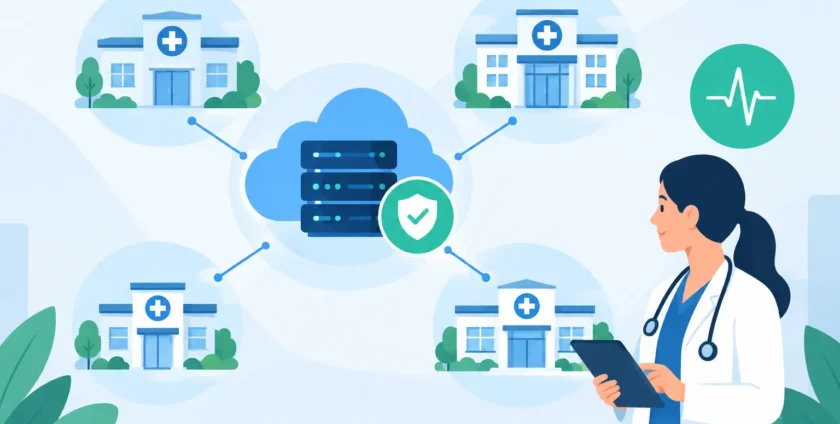
A clinic network upgrade is rarely about replacing equipment for the sake of it. It is about stopping the small technology delays that add up across a busy day: a workstation that takes too long to open patient records, Wi-Fi that drops during a consult, or a scanner that cannot send results when it matters. For practice managers, those interruptions affect staff, clinicians and patients alike.
A well-planned upgrade gives your practice a more reliable foundation for clinical software, cloud services, connected devices and secure communication. The key is to assess what is causing friction first, then make improvements that suit the way your clinic actually operates.
When a Clinic Network Upgrade Is Needed
Most clinics do not need to wait for a complete outage before reviewing their network. Warning signs often appear gradually. Staff may report slow access to practice management software at peak times, unreliable wireless coverage in consulting rooms, or frequent calls to IT about printers, shared files and login issues.
New technology can also expose an older network. Adding cloud-based medical software, more mobile devices, telehealth rooms, imaging equipment or additional staff increases demand on the connection and internal network. A network that was suitable for a small practice five years ago may struggle once several clinicians are working with large files, video calls and cloud applications at the same time.
Security is another reason to act. Unsupported network equipment, shared passwords, poorly separated guest Wi-Fi and outdated firewalls can create unnecessary risk. Healthcare providers handle sensitive information, so network design needs to support appropriate access controls, monitoring and reliable backups without making everyday work harder.
Start With How Your Clinic Works
The best upgrade plans begin with a practical assessment, not a shopping list. Before choosing new switches, wireless access points or a faster internet service, map out the systems your team relies on and where they are used.
Consider the front desk, consulting rooms, treatment areas, staff offices and waiting room separately. Each space has different needs. Reception may need stable access to booking, payments and patient records. Clinicians may need strong Wi-Fi for mobile devices and telehealth. A treatment room may rely on specialised equipment with fixed network requirements. Guests should be able to access the internet without being anywhere near internal clinic systems.
It also helps to identify the busiest moments of the day. If the network slows down at opening time, during afternoon appointments or when backups run overnight, those patterns point to a capacity or configuration issue. A proper assessment should review the internet connection, cabling, Wi-Fi coverage, firewall, switches, server or cloud access, backup process and the age of core equipment.
This discovery stage avoids a common mistake: upgrading the internet plan when the real bottleneck is old Wi-Fi hardware, damaged cabling or an overloaded switch.
Build a Network That Supports Clinical Work
A clinic network should be designed around reliability, security and simple day-to-day use. It does not need to be complicated, but it does need clear boundaries between systems and enough capacity for growth.
Separate the traffic that should not mix
One of the most valuable improvements is network segmentation. This separates different types of traffic into controlled areas. For example, staff devices and clinical systems can be separated from guest Wi-Fi, while specialised devices can be placed in their own segment where appropriate.
This approach improves security and can reduce the chance that a problem in one area affects the entire practice. It also makes troubleshooting faster. If the guest network is busy, it should not slow down access to patient records or critical applications.
The exact setup depends on your clinical software, devices and operational requirements. Some equipment may require specific network access or vendor-approved configurations, so changes should be planned carefully rather than applied as a one-size-fits-all solution.
Improve Wi-Fi where staff need it
Wi-Fi problems are often treated as an internet problem, but coverage and capacity are just as important. A single consumer-grade router at the front of the clinic is unlikely to provide dependable coverage through consulting rooms, internal walls and treatment areas.
Business-grade wireless access points can be positioned based on a site survey and the building layout. The goal is consistent coverage where clinicians and staff work, not simply the strongest signal in reception. Wired connections should still be used for fixed, high-priority devices where practical, including desktop workstations, printers, servers and some medical equipment.
Protect access without slowing down staff
A secure network should make it easier to control who can access clinic systems. This may include individual staff accounts, multi-factor authentication for remote and cloud access, managed firewall rules, secure remote support and regular software updates.
Avoid using shared logins for systems that contain patient or business information. Individual access makes it easier to manage staff changes and investigate issues if they arise. It is also sensible to review administrator access, inactive accounts and devices that are no longer in use.
Plan for Downtime Before Work Begins
Even a carefully managed clinic network upgrade can involve short interruptions. The difference between a smooth change and a stressful one is preparation.
Schedule works outside consulting hours where possible, and let staff know exactly what will change. Confirm that current network settings, key software configurations and important data are documented before any equipment is replaced. Backups should be checked, not merely assumed to be working.
It is also worth creating a short fallback plan for reception and clinicians. This could cover how appointments are managed if a system is briefly unavailable, who staff should contact, and how to communicate with patients if needed. The aim is not to expect failure. It is to ensure the clinic can continue operating calmly if an unexpected issue occurs.
After the installation, testing should reflect real work. Check access to patient management software, printers, scanning, email, cloud storage, telehealth, EFTPOS and any connected clinical equipment. Test from different rooms and with several devices online. A network can look fine in a basic speed test while still causing trouble for the applications your team uses every day.
Think Beyond the Initial Installation
New equipment helps, but ongoing management keeps the network dependable. Firmware updates, security patches, monitoring, backup checks and periodic reviews are all part of maintaining a healthy environment.
Capacity should also be reviewed as the practice changes. Opening an additional consulting room, adding staff, moving more services to the cloud or introducing new medical devices can alter network requirements quickly. Planning with some room for growth is usually more cost-effective than replacing equipment again after a short period.
For many clinics, a managed IT partner provides useful oversight after the upgrade. They can monitor core systems, respond when faults occur and keep documentation current. This is particularly valuable for practices without an internal IT team, where a practice manager may otherwise be left coordinating multiple vendors during an outage.
Onsite Technology Solutions can assess the current environment, provide practical recommendations and support both remote and on-site work across Melbourne. The focus should always be on the systems your practice depends on, not on selling technology that does not solve a real operational problem.
Questions to Ask Before Approving the Work
Before proceeding, ask what problem each proposed change will solve and how success will be measured. You should also understand which equipment is being replaced, whether existing cabling can be retained, how long disruption is expected to last, and who will support the environment once the work is complete.
Ask for clear documentation of the new setup, including network equipment, Wi-Fi details, access arrangements and support contacts. This information is useful when staff change, software vendors need assistance or an issue needs to be resolved quickly.
Price matters, but the cheapest option is not always the most affordable over time. Low-grade equipment, poor coverage planning and limited support can lead to repeat call-outs, staff frustration and avoidable downtime. A sensible solution balances upfront cost with reliability, warranty, security and ongoing support.
A clinic network should quietly support the work around it. When patient records open promptly, devices stay connected and staff know help is available, technology stops being another daily concern and lets your team focus on patient care.
- By:
- Category: Uncategorized
- 0 comment